Table of Contents
List View Functionality
Each Module provides a List View grid of all entries associated with that Module. For example, the Aggregate Source Module will contain one entry in the List View grid for each Aggregate Source defined in the Integral-LIS application.
Example of the List View

List View Items
The data contents of the list view can be adjusted using settings on the list view homepage.
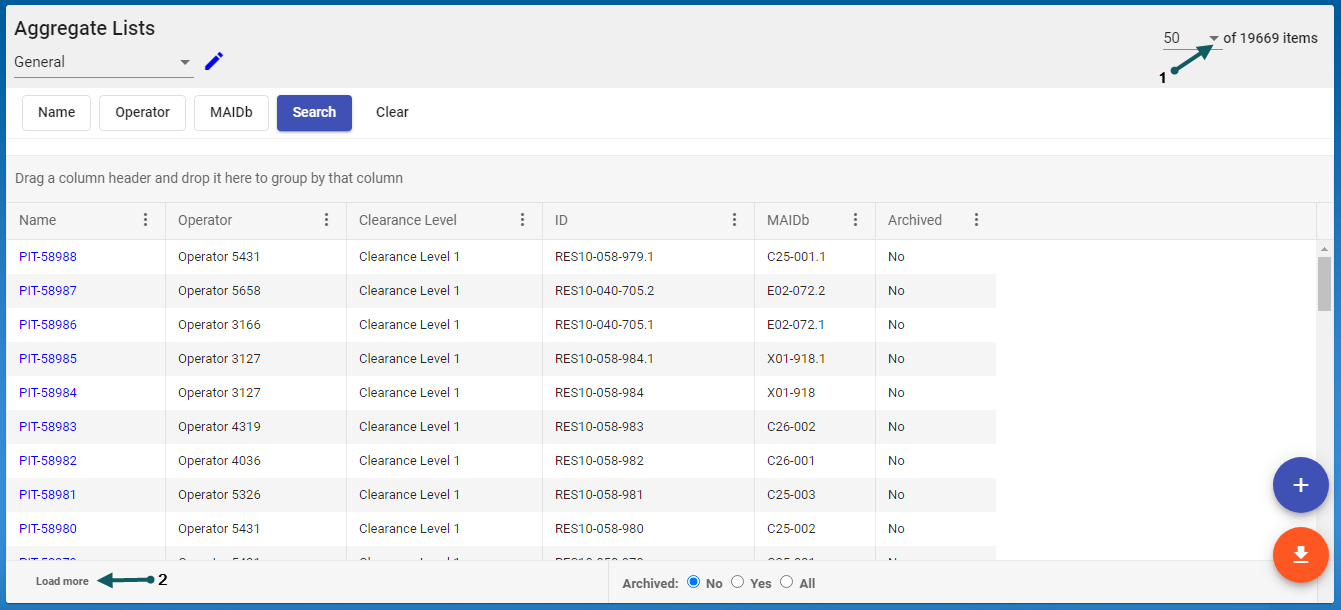
- Items displayed - Adjust the number of items displayed in the List view by selecting from the drop-down at the top right (1). The default display total is the minimum 50 items, other increments that would be selectable are 100, 500, or All. Display the next set of items by selecting Load More (2).
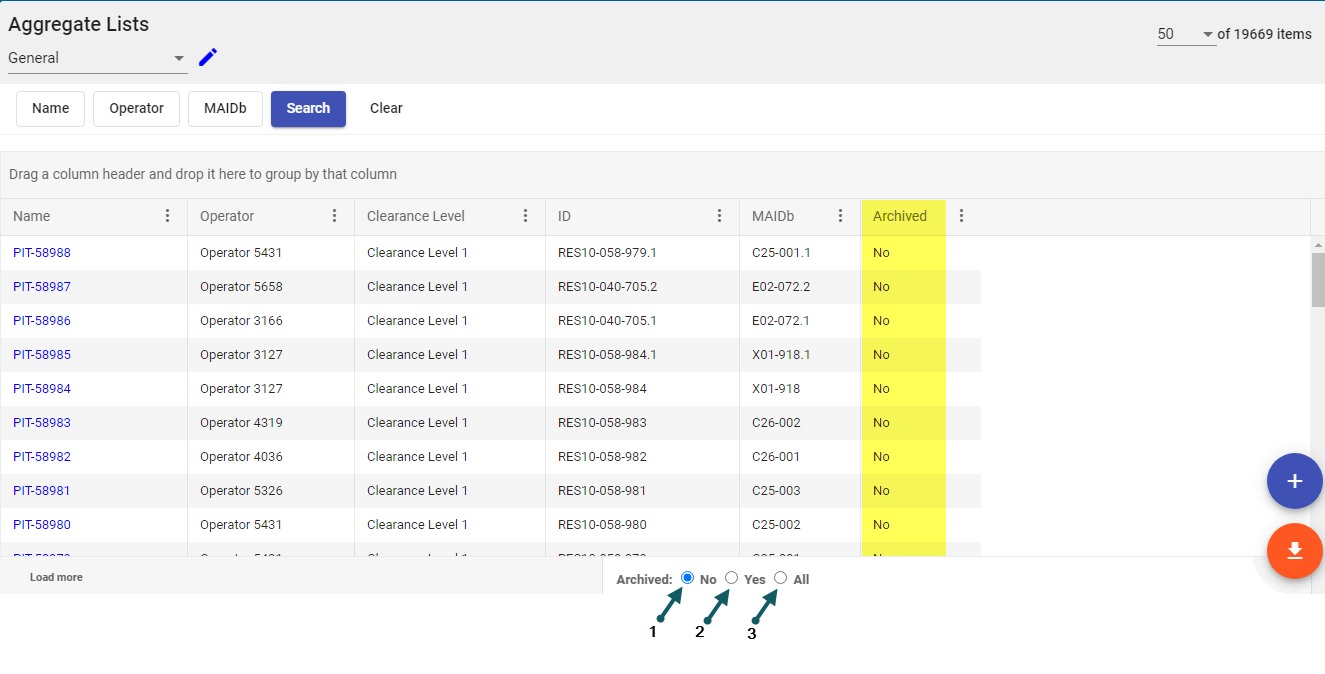
- Archived Items - By default, archived items are not displayed (1). However, this can be changed to only show archived items (2) or show both archived and non-archived items (3).


Sorting, Grouping and Filtering
Certain functionality is available to modify the content and appearance of the List View grid for each Module:
- Sorting - Sort the List View grid by the selected column. Click any column header on the List View to toggle between sorting by ascending, descending, and none.

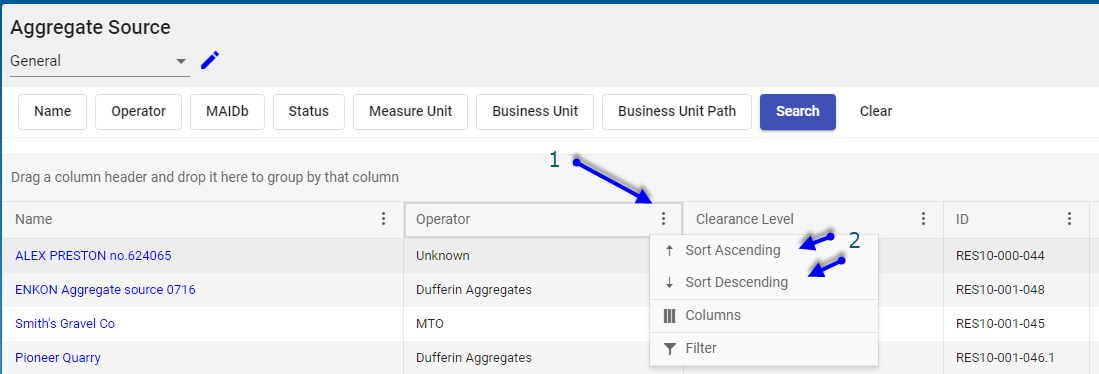
- Alternatively, sort the List View grid by selecting the three dots (1) for the column of interest, then selecting (2) either Sort Ascending or Sort Descending.
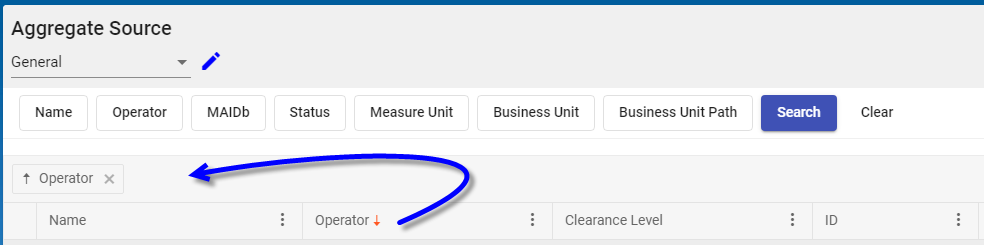
- Group the List View records by the selected column or columns. Drag any column header to the space just above the header bar to group the grid by that column. Multiple columns can be used for grouping.
- Filter the List View records by the selected column or columns. Click a column (1) to display either a dropdown list (2) of predefined values or a free-format text prompt (such as Name)
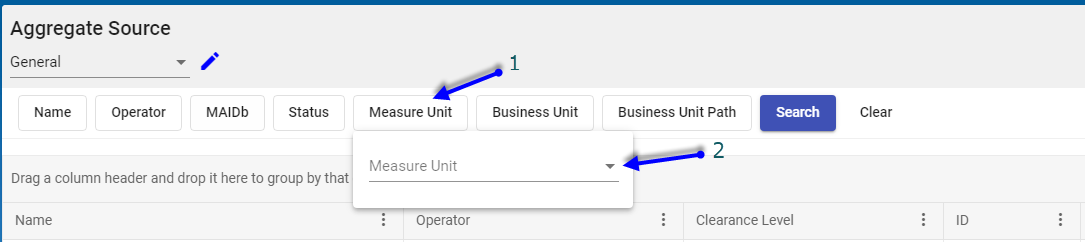
- choose from the drop-down list (3) or enter free-format text to use in the filter. Click the Search button (4) to run the filter.
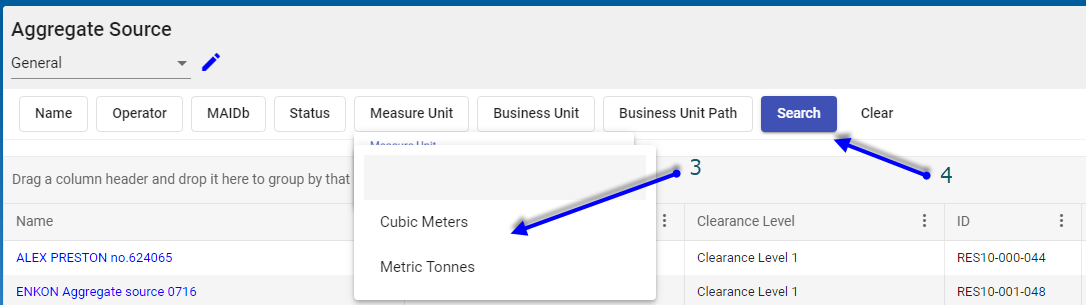
- Multiple columns can be filtered simultaneously.
- (Optional) Clear the filter by clicking the Clear button.


Add or Remove Columns
The ability to add or remove columns from the List View grid is common functionality available for each Module:
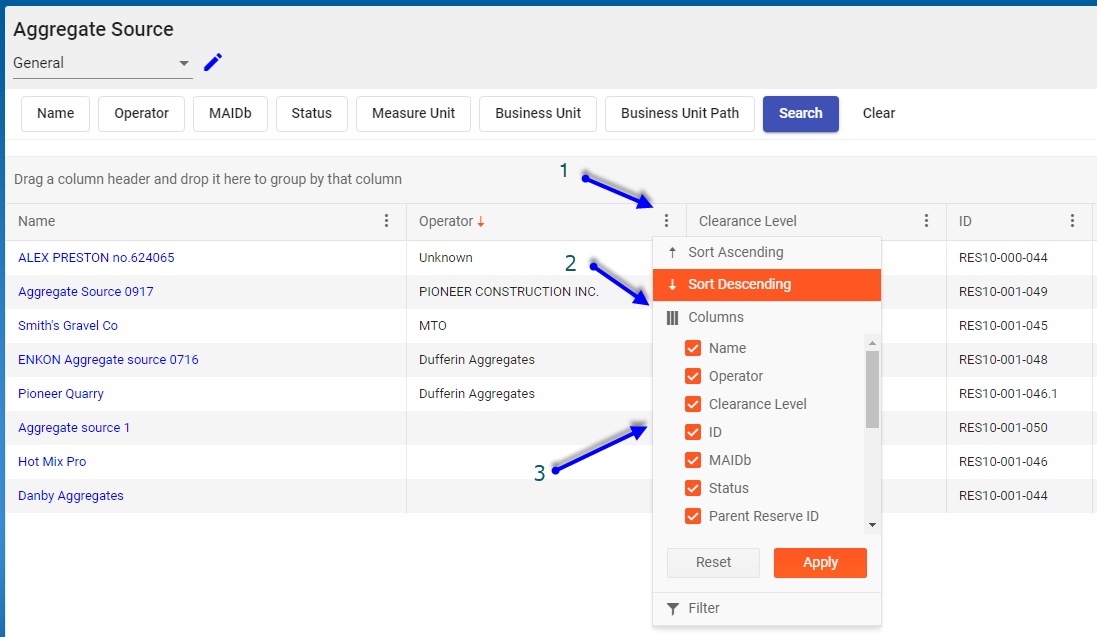
- Add or Remove columns from the List View grid by (1) selecting the three dots beside any column, then (2) selecting Columns in the dropdown, next (3) Add or Remove a check mark beside the columns of interest and select Apply

Grid Configuration Views
Once all the column sorting, grouping, filtering, adding and removing is completed, the new List View grid configuration can be saved and re-used. This is common functionality available for each Module:
- Add a new Grid Configuration View by first (1) selecting the pencil, then (2) selecting Add New in the dropdown, next (3) supply a name for the Grid Configuration and click OK
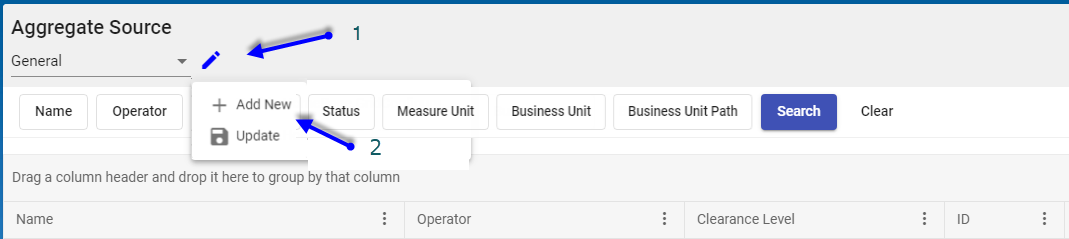
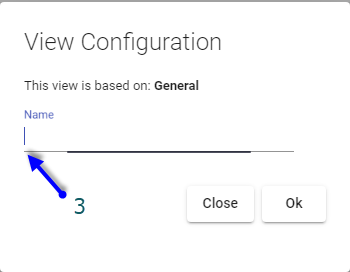
- The new Grid Configuration will then be available in the dropdown under the module name


Add Grid Data
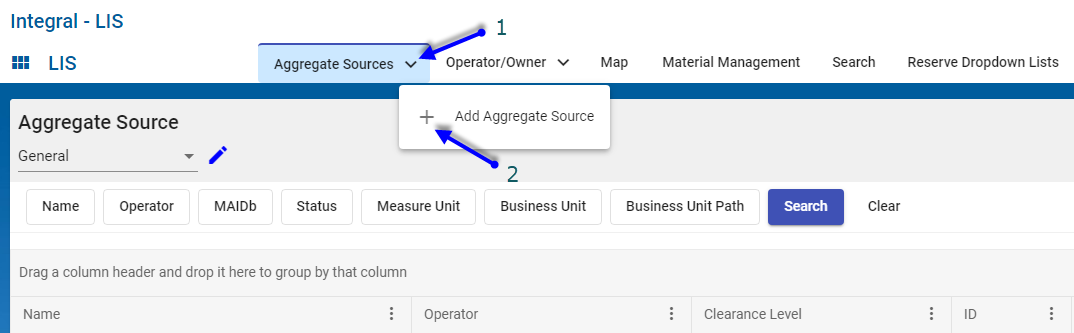
Grid data can be added either by clicking the Plus sign icon  at the bottom right or by clicking the dropdown arrow for the Module. This is common functionality available for each Module:
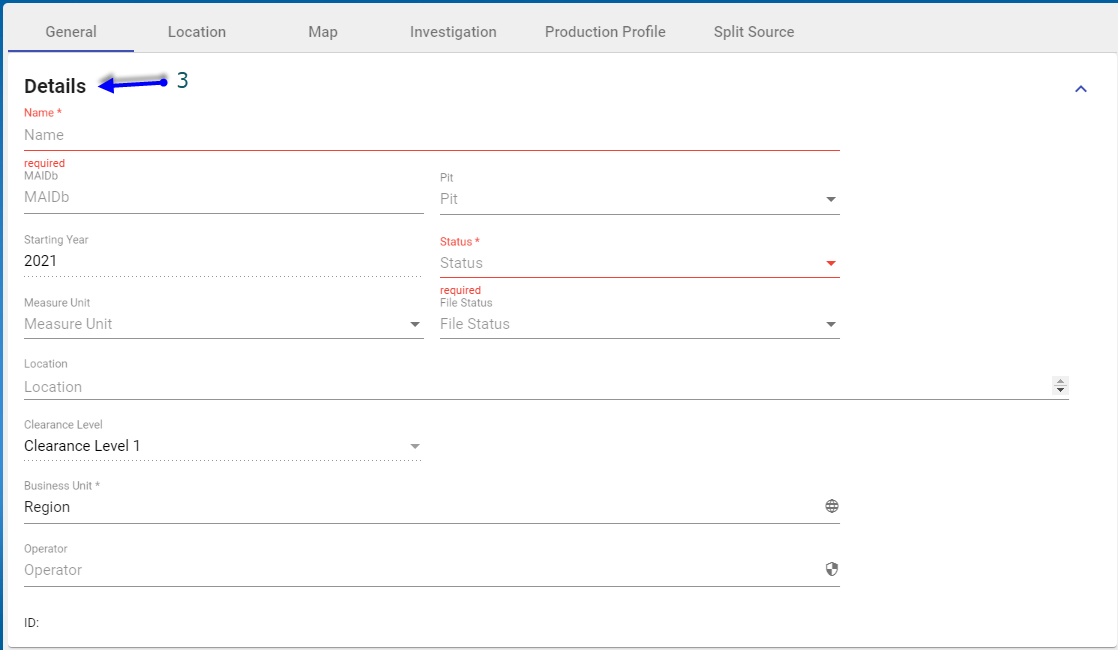
- Add a new Grid row by first (1) selecting the Module dropdown, then (2) selecting + Add in the dropdown, next (3) populate the data in the Module Data Entry Screen and click OK or cancel.
- Note: Red-highlighted sections are mandatory.


Edit Grid Data
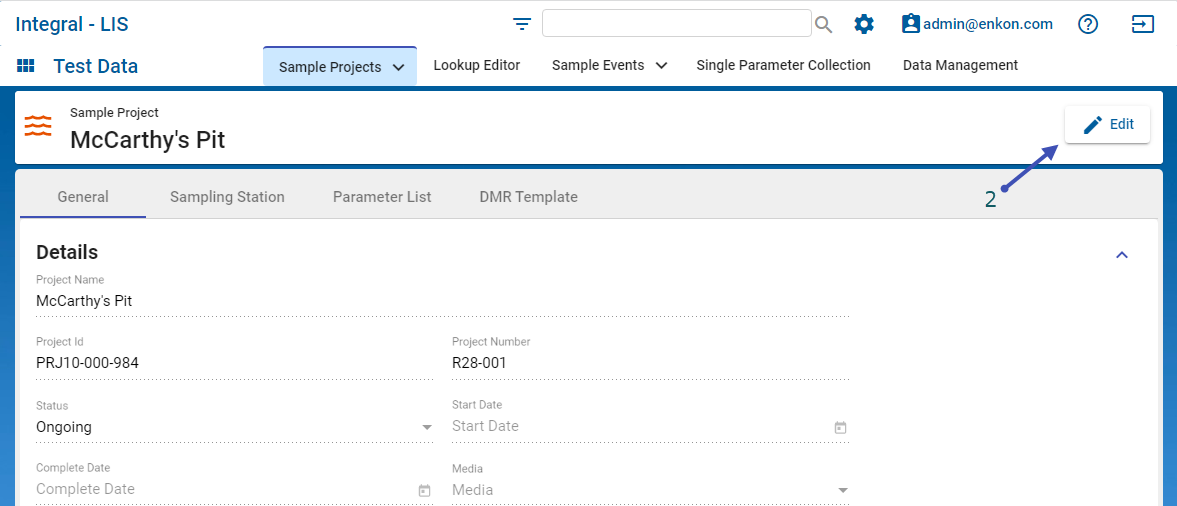
Grid data can be edited by clicking the Edit button at the top right for the Module. This is common functionality available for each Module:
- Edit a Grid row by first (1) selecting the grid data entry of interest
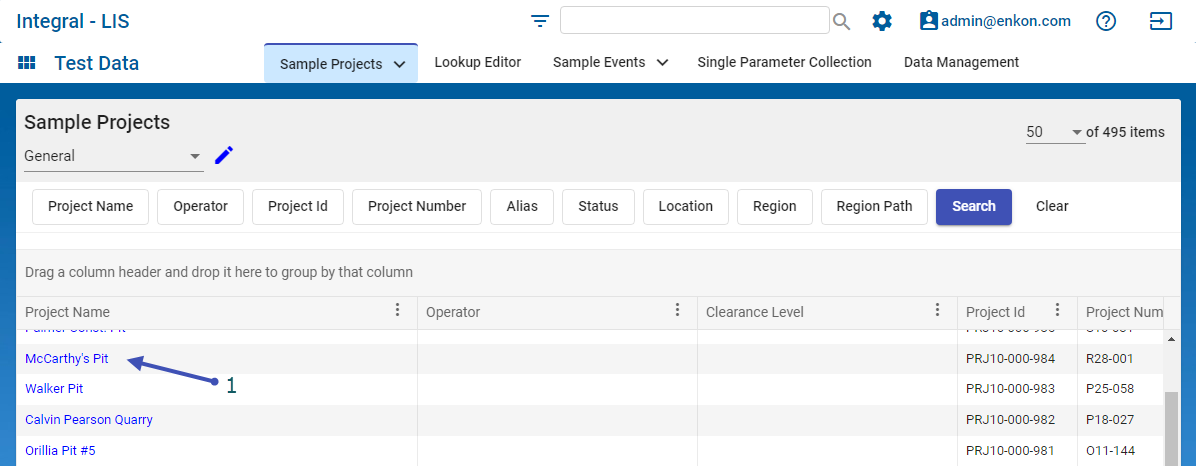
- Then selecting Edit (2)
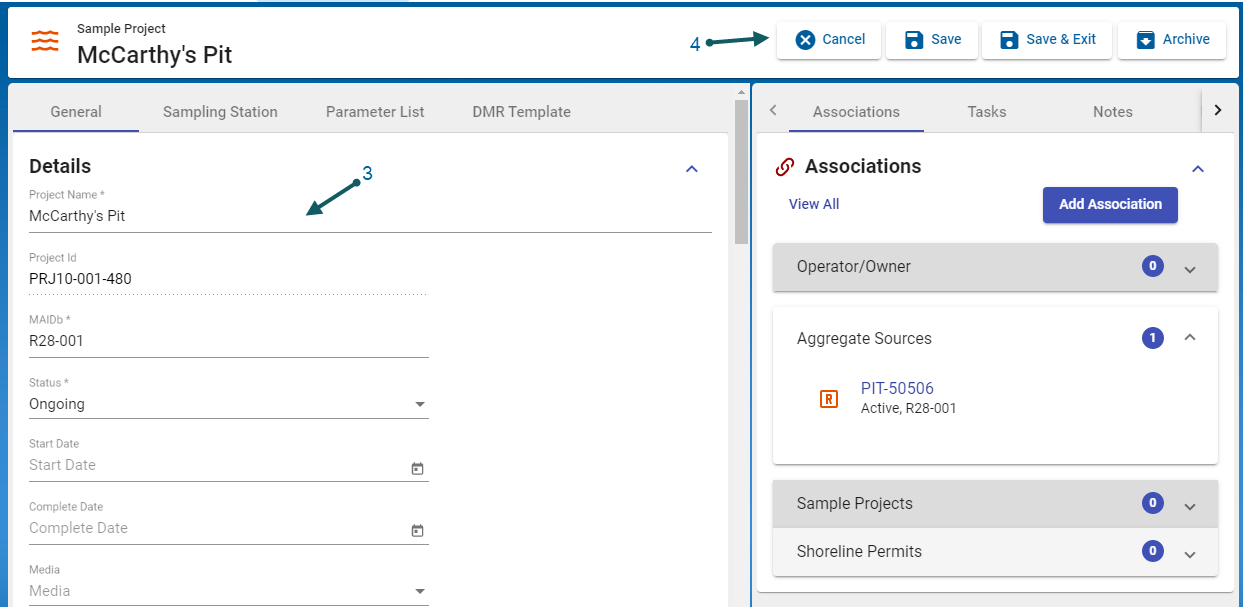
- Next update the data in the Module Data Entry Screen (3) and click (4) Archive, Save & Exit, Save or Cancel.


Export Grid Data
Grid data can be exported to either an excel or a PDF file. This is common functionality available for each Module:
- Export the grid data to either Excel or PDF format by selecting the Export icon
 at the bottom right of the screen.
